
Close your shop for the Fourth of July in about two minutes, and AutoJoy will treat the day as closed instead of running your normal weekly hours. Set it now and you won’t come back to a pile of appointments booked for a day nobody was in.
1. Open your Scheduling settings
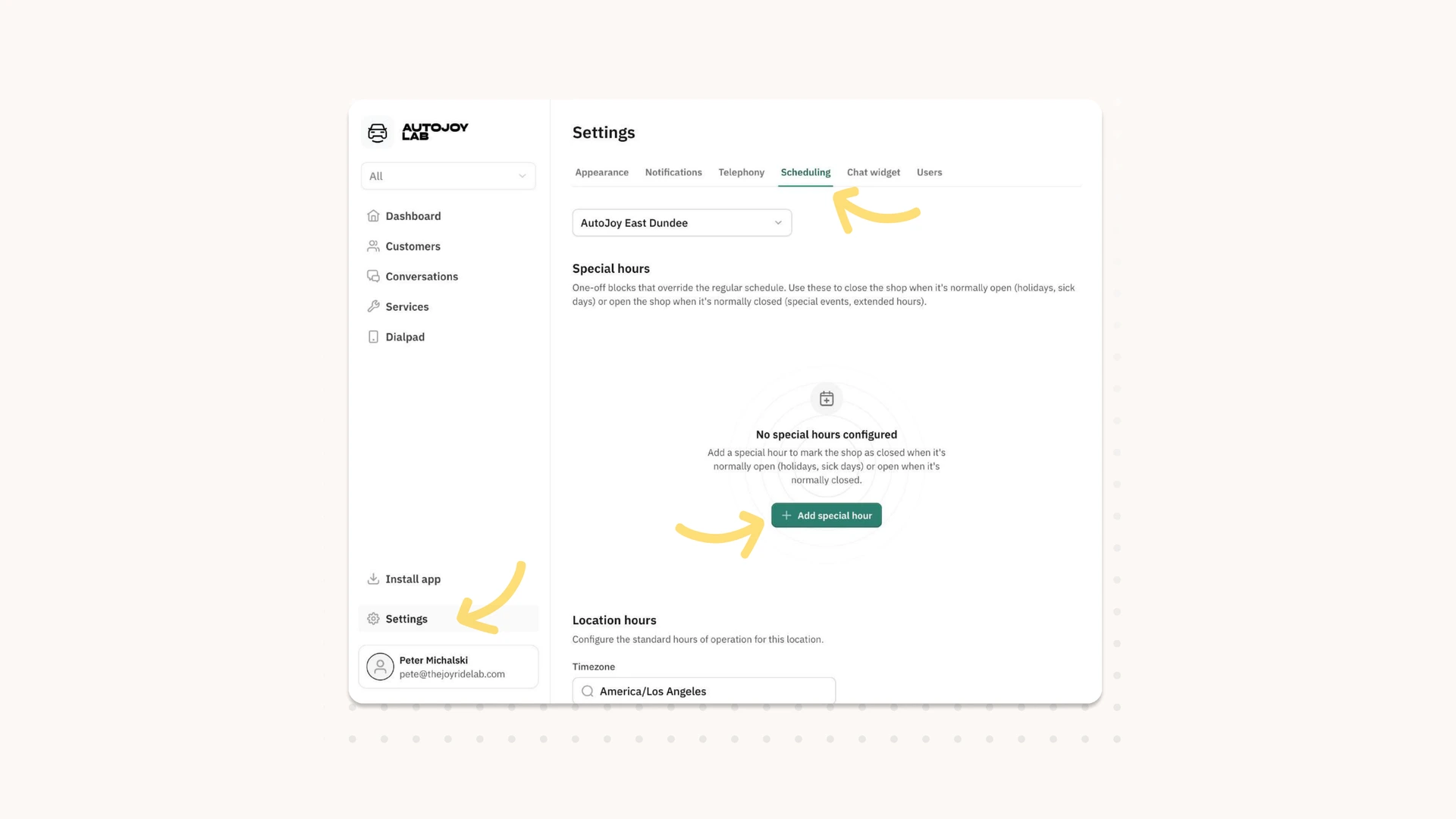
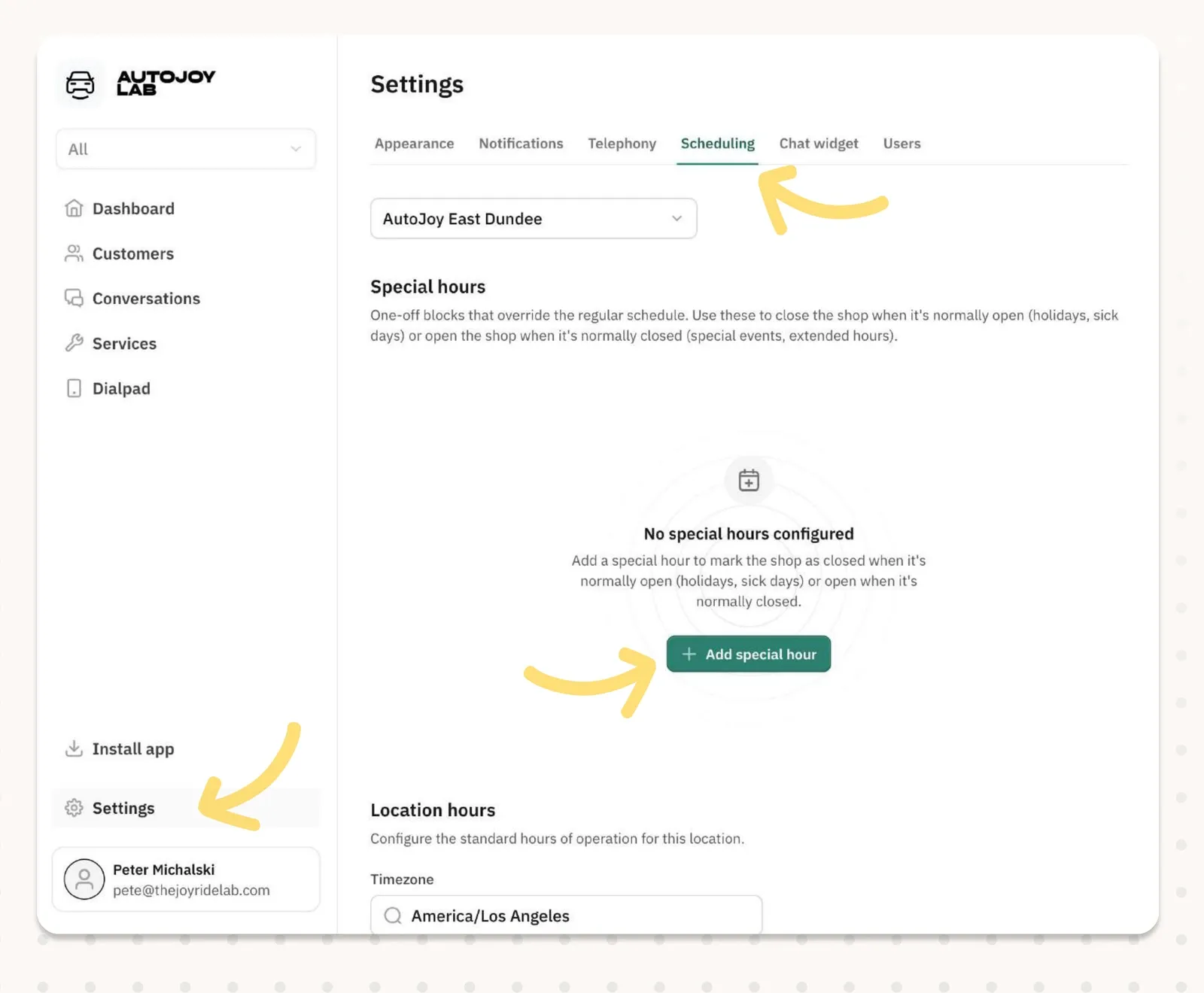
Click “Settings” at the bottom of the left navigation, then open the “Scheduling” tab. Check the location dropdown and confirm the right shop is selected. The example uses AutoJoy East Dundee.
Under “Special hours”, click “Add special hour”. If you haven’t set any yet, that button sits in the middle of an empty state that reads “No special hours configured”.
2. Set the closure and describe it
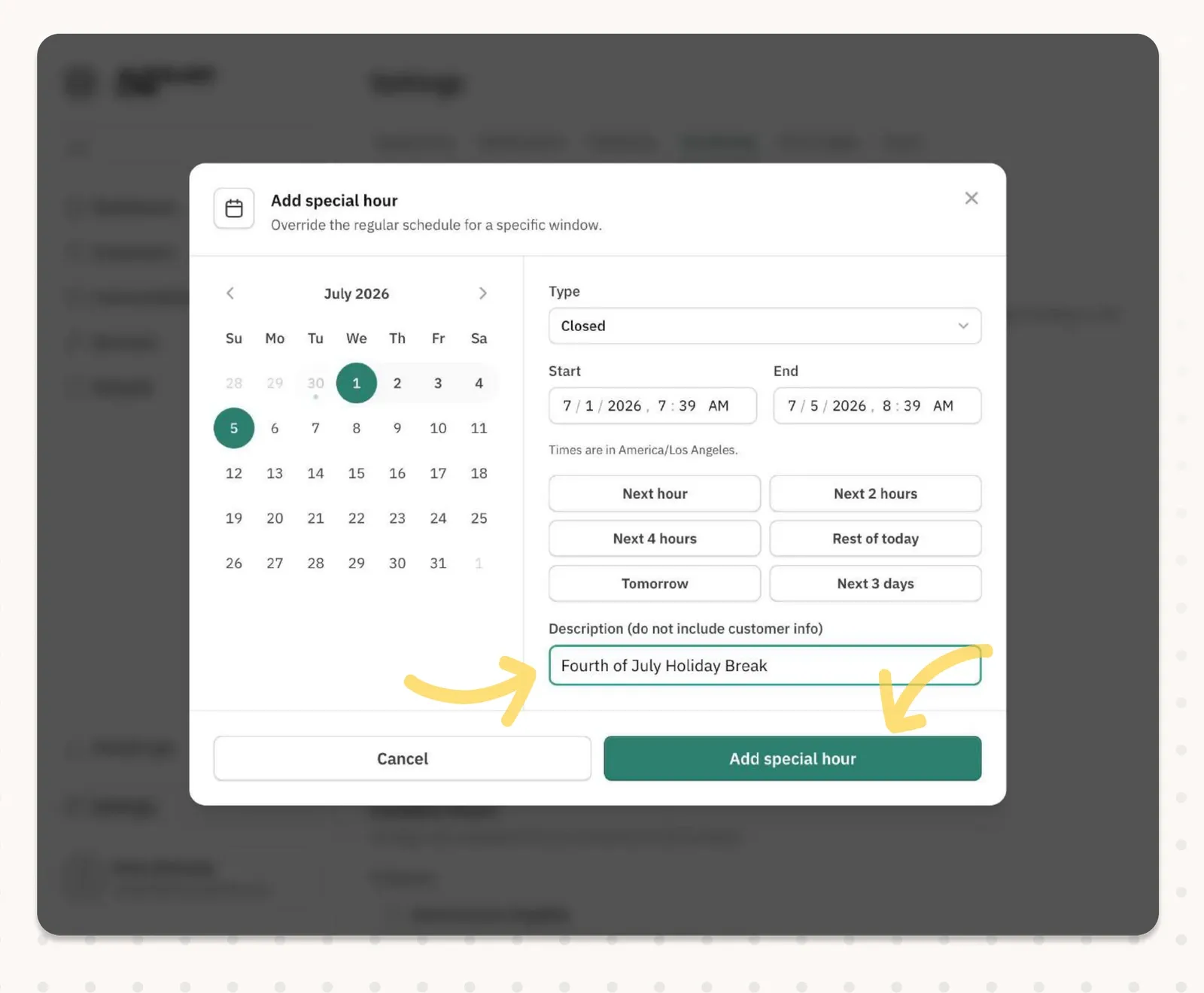
The “Add special hour” window opens with the line “Override the regular schedule for a specific window”. Leave “Type” set to “Closed”, which is the option for closing a shop that would normally be open.
Pick your date range in the Start and End fields. For the holiday, the example runs 7/1/2026 to 7/5/2026. There are quick presets too, like Next hour, Tomorrow, and Next 3 days. Times follow the location’s timezone, shown here as America/Los Angeles.
In the “Description” field, type why you’re closed, such as “Fourth of July Holiday Break”. The field warns you not to include customer info. Click “Add special hour” to save.
3. Confirm, edit, or delete
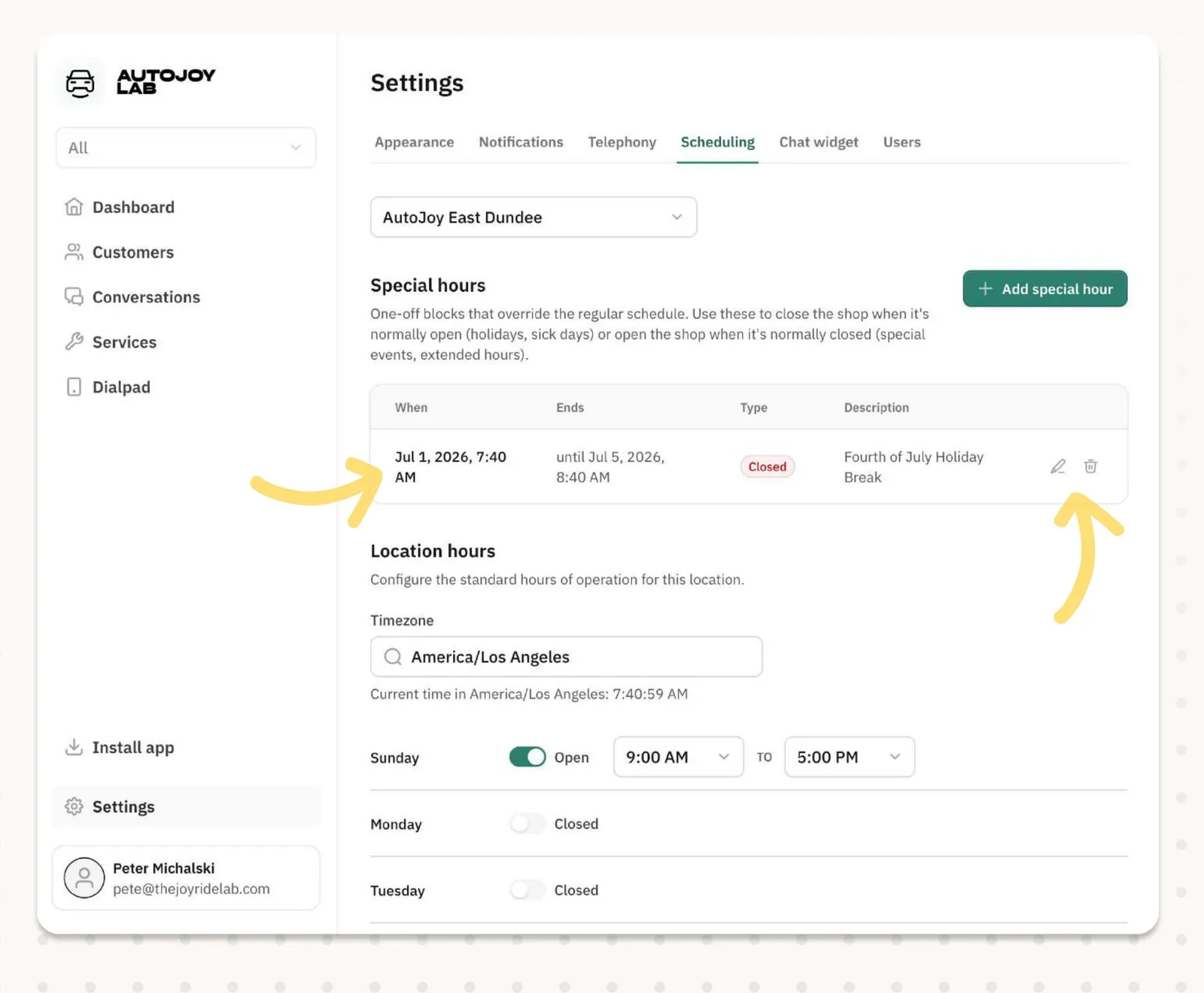
Your saved block shows up in the Special hours table with its When, Ends, Type (a red “Closed” badge), and Description. Each row has a pencil to edit and a trash icon to delete, so you can change or remove it whenever you need to.
To add more closures later, like Thanksgiving, Christmas, or a training day, use the “Add special hour” button that now sits at the top right of the section.
The special hour overrides your regular schedule for those dates, so AutoJoy books around the closure instead of your usual hours. You can edit or delete a block anytime plans change, and the same feature works in reverse: set the Type to open the shop on a day you’re normally closed, like a weekend event. Set it before you head out and the holiday takes care of itself.